 Do NOT Do This To Cool Down
 Do NOT put your laptop in the fridge. (Rapid cooling causes condensation moisture inside the electronics, which causes short circuits). Do NOT rely on cooling pads as a cure. (While they help improve external airflow, they cannot fix a clogged internal heatsink or dried thermal paste). Do NOT block the intake vents. (Using a laptop on a soft bed or pillow suffocates it. Always use a hard surface).
Why: You generally cannot cheat physics. The heat must leave the chassis, not just move around inside it.
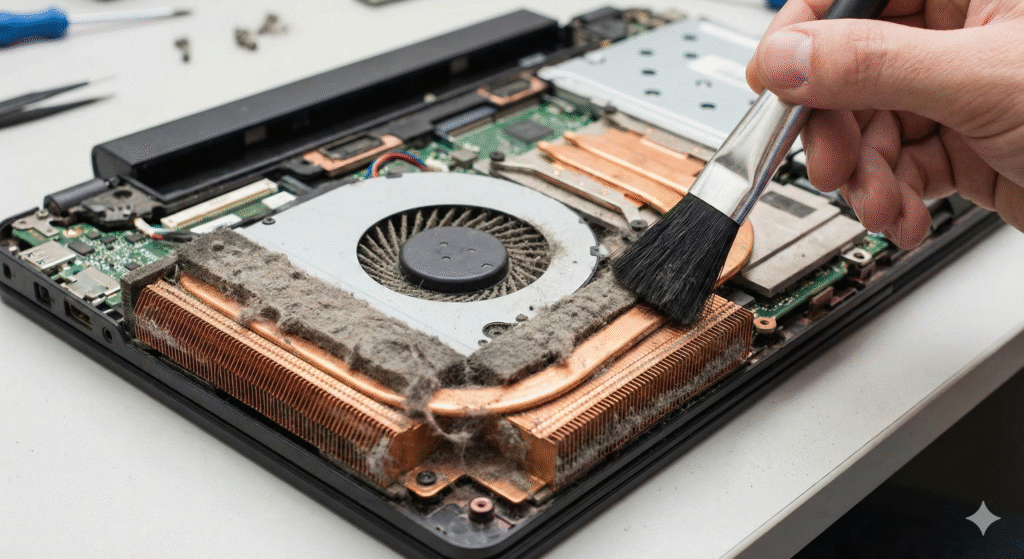
 The Dust “Blanket” Visual
File Name: laptop-heatsink-dust-clog.jpg Alt Text: Laptop overheating solutions – clogged heatsink vs clean heatsink Caption: This “felt” layer of dust blocks airflow completely. No amount of software tweaking will fix this.
Real-Life Micro-Story: The “Gaming” Laptop
“A client brought in a gaming laptop saying it was ‘broken’ because games ran at 10 frames per second. He was ready to replace the machine. I opened it up. The fans were completely carpeted in cat hair. I removed the hair, repasted the CPU, and it ran like new. He restored full performance with a simple cleaning instead of buying a new rig.”
The Lesson: Performance issues are often just maintenance issues in disguise.
 The Preventative Setup (Keep It Cool)
Don’t wait for the fire. Prevent the spark.
-
Elevate the Back: Prop up the back edge of your laptop by 1 inch (use a book or small stand). This drops temps by 3-5°C by improving intake airflow.
-
Clean Every 6 Months: A quick burst of air twice a year prevents the “felt” layer from forming.
-
Underservicing (Advanced): Use software to slightly lower the voltage to your CPU. It generates less heat with zero performance loss.
Final Thoughts: It’s Maintenance, Not Mortality
Laptops don’t usually die from heat; they die from neglect.
Understanding laptop overheating solutions is about recognizing that heat is a symptom, not a disease. Clear the airway, refresh the paste, and your machine will likely thank you with silence and speed.
If your battery drains fast even after fixing the heat, the heat may have already degraded the chemical cells. (Read guide on [[Why 100% Battery Health Is a Myth]] to understand permanent heat damage).
Keep it clean, keep it elevated, and keep it cool. (Read our guide on [[Laptop Accessories That Actually Improve Workflow]] to see the best stands for airflow).
Frequently Asked Questions
Q: Do cooling pads actually work? A: Yes, but marginally. They can lower temperatures by 3-5°C by assisting intake airflow, but they are a supplement, not a replacement for cleaning internal dust.
Q: What is a normal temperature for a laptop? A: Idle: 40°C – 55°C. Under Load (Gaming/Rendering): 70°C – 85°C. If you consistently hit 90°C – 95°C, you are overheating and likely throttling.
Q: Can overheating damage my laptop permanently? A: Yes. Prolonged heat degrades the battery capacity rapidly and can shorten the lifespan of the motherboard components over time.