
How to How to recover deleted photos from Android from Android: The “Panic” Guide (No Root Needed)

pexels fotios photos 5139254

Accidentally deleted a photo? Don’t panic. Here is how to recover deleted photos from Android using the “Trash” trick, Google Photos backup, and why you should avoid shady recovery apps.

How to Recover Deleted Photos from Android: The “Panic” Guide (No Root Needed)

It happens in a split second. You meant to hit “Share,” but your thumb slipped and hit “Delete.” Or worse—you selected the wrong folder and wiped your entire vacation album.

Your stomach drops. You feel like throwing the phone across the room. You think: It’s gone forever.

Stop. Put the phone down.

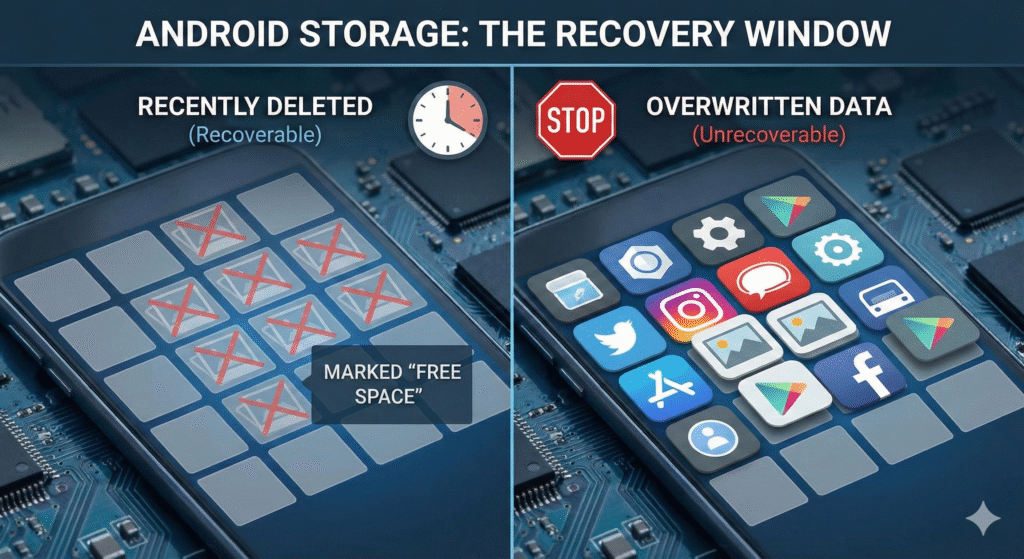
When analyzing how to recover deleted photos from Android, we need to understand how flash storage works. When you hit delete, the phone doesn’t “erase” the photo immediately. It simply marks the space as “available.” The data is still there, ghost-like, waiting to be overwritten. You have a small window of opportunity to save it.

Important: If you deleted these photos months ago and have used your phone heavily since then, the chances of recovery are near zero. This guide is for recent accidents.

📉 Quick Answer: The “Recovery Hierarchy”

Before you download sketchy software, check these three hiding spots.

The Salvation Cheat Sheet (TL;DR)

  • The “Trash” Bin: Most modern Gallery apps keep deleted items for 30 days.

  • The Cloud Shadow: Google Photos often backs up images even if you deleted them from the local gallery.

  • The Disk Dig: If the file is truly gone, apps like DiskDigger can find the “cached” version (lower quality) without rooting.

⚡ Instant Decision Guide: What Are Your Chances?

  • Deleted < 30 days ago?100% Recovery (Check Trash).

  • Deleted recently + Cloud Backup on?95% Recovery (Check Google Photos).

  • Deleted > 60 days ago + No Backup?Low Chance (Requires Root/Professional Help).

🛠 The First 5 Minutes: Emergency Protocol

If you just deleted the photo, do this IMMEDIATELY to stop the data from being destroyed.

  1. Stop taking new photos. (New files will overwrite the “ghost” data of the deleted photo).

  2. Turn off Wi-Fi and Data. (If Google Photos “Backup & Sync” is enabled, deleting from the Gallery may also delete from the cloud unless you restore it from the Trash first. Turning off data prevents this sync).

  3. Check the “Bin” or “Recently Deleted” folder in your Gallery app.

1. The “Trash” Can (You Probably Missed It)

Five years ago, deleting a photo meant it was nuked instantly. Today, Android acts like a PC. Samsung, Google Pixel, and Xiaomi phones all have a “Recycle Bin” built into their default Gallery apps. The Fix: Open Gallery > Tap the Menu (Hamburger icon) > Select Trash or Bin. You will likely find your photos sitting there, with a timer counting down from 30 days. Select them and hit “Restore.”

Elite Insight: If you use Google Photos as your gallery, check the “Archive” folder too. Sometimes photos aren’t deleted; they are just hidden from the main timeline to declutter your view.

2. The Cloud Safety Net

Even if you think you turned off backups, Android often enables them by default. Check Google Photos, Dropbox, or Microsoft OneDrive. Often, the “local” deletion on your phone doesn’t sync immediately to the cloud server, especially if you turned off data right after the mistake. Log into Google Photos on a computer (not the phone). If the photos are there, download them immediately.

The Science: Cloud services use a “two-stage delete.” Even if you delete a photo from the cloud, it usually sits in the cloud’s trash bin for 60 days before permanent erasure.

3. The “Deep Dig” (DiskDigger)

If the Trash is empty and the Cloud is empty, you need a recovery tool. Warning: Most “Recovery Apps” on the Play Store are ad-filled scams. The only one we recommend for non-rooted phones is DiskDigger.

  • Without Root: It scans your cache. It won’t recover the full 4K original, but it will recover a decent quality “thumbnail” version. Modern Android phones use file-based encryption, which makes full recovery without root or backups significantly harder than it was 5–10 years ago.

  • With Root: It can access raw storage blocks directly, bypassing Android’s app sandbox restrictions to find the original file.

Real Talk: A blurry photo is better than no photo. Professional data recovery services use forensic-level tools, but they are expensive and not guaranteed on encrypted devices.

🚫 Do NOT Do This If You Lost Data

Do NOT install “Dr. Fone” style PC software unless you are desperate. (These programs often charge $50+ to unlock “features” and rarely work on modern Android encryption). ❌ Do NOT factory reset the phone. (This wipes the encryption key. Once you reset, the data is mathematically unrecoverable). ❌ Do NOT keep using the phone. (Every text message you receive writes data to the drive, potentially overwriting your lost photo).

Why: Data recovery is a race against time and storage space.

gemini generated image y4poc6y4poc6y4po

Real-Life Micro-Story: The “Hidden” Folder

“I thought I lost all my photos from a concert. I ran recovery software, I cried, I panicked. Then I opened my File Manager app. It turned out I hadn’t deleted them; I had accidentally moved them into a sub-folder created by a video editing app. The Gallery app stopped scanning that folder because it contained a ‘.nomedia’ file. The photos were there the whole time, just invisible to the Gallery.”

The Lesson: Always use a “File Explorer” app to look through your folders manually before assuming data is gone.

🔐 The 60-Second Backup Setup (Do This Once)

Don’t let this happen again. Secure your future photos right now.

  1. Open Google Photos.

  2. Tap Profile > Photos Settings.

  3. Turn on “Backup”.

  4. Choose Storage Saver (free space) or Original Quality (paid).

  5. Optional: Use an external SSD for double backup. (Read our guide on [[Laptop Accessories That Actually Improve Workflow]] to see our recommended backup drives).

Final Thoughts: Backup > Recovery

Recovery is a gamble. Backups are a guarantee.

Understanding how to recover deleted photos from Android gives you a fighting chance, but the physics of flash storage means nothing is certain. If you got your photos back today, take it as a warning shot. Turn on Google Photos backup now.

If your phone is acting sluggish or battery is draining fast during this process, it might be hardware aging. (Read our guide on [[Why 100% Battery Health Is a Myth]] to understand how hardware aging affects performance).

The best time to back up your data was yesterday. The second best time is right now.

Frequently Asked Questions

Q: Can I recover photos deleted 2 years ago? A: Almost certainly not. Unless the phone has been turned off and sitting in a drawer for 2 years, that storage space has been overwritten thousands of times by new apps, cache, and updates.

Q: Do I need to root my phone to recover photos? A: To get the original quality file, usually yes. However, unrooted phones can recover “cache” versions (lower resolution) which are often good enough for social media.

Q: Why do recovery apps show me photos I already have? A: Recovery apps scan everything, including current files and browser cache icons. You have to filter the results to find the actual deleted items amidst the thousands of temporary internet files.

Have Any Question? Feel Free To Ask:

Leave a Comment

Your email address will not be published. Required fields are marked *

0

Subtotal