How to Create a Bootable USB Drive (Windows 11, 10 & Linux) — Step-by-Step
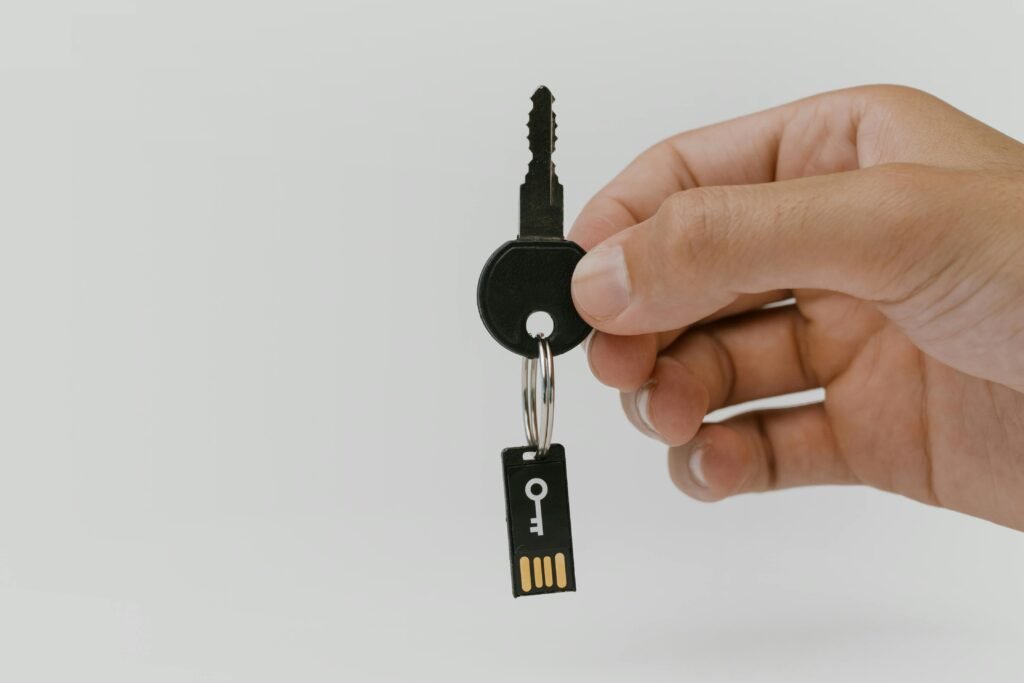
Creating a bootable USB drive means turning a normal USB stick into a device that can install or repair Windows or Linux when your computer won’t start.
Most people think creating a bootable drive is as simple as downloading a Windows file and dragging it onto their USB stick. If you do this, it will fail. Your computer’s BIOS cannot read a standard file inside a folder. It needs a specific boot sector. To get that, you need to “burn” the image, not just copy it.
Technically, a bootable USB works because the installer writes a special bootloader and partition structure that your computer’s UEFI or BIOS firmware can recognize before any operating system loads.
Whether you are building a rescue stick for a crashed PC or installing Linux for fun, knowing how to create a bootable USB drive is a survival skill for the digital age.
Quick Answer: The 3 Best Tools
1. For Windows 10/11: Media Creation Tool. (Official, easiest, hard to mess up).
2. For Linux / Advanced Windows: Rufus. (Fastest, allows bypassing TPM 2.0 checks).
3. For macOS users: BalenaEtcher. (Simple drag-and-drop interface).
The Requirement: A USB drive with at least 8GB of space (and empty, because this process wipes everything).
 Note: Creating a bootable USB modifies partitions and boot sectors. While safe when done correctly, always double-check the selected drive to avoid accidental data loss.
At BinarySpur, we don’t just use computers; we fix them. Here is the technician’s workflow for creating a drive that actually boots.
Method 1: The Official Way (Windows Media Creation Tool)
If you just want to install a clean version of Windows 10 or 11, don’t overcomplicate it. Use Microsoft’s own tool.
-
Best for: Beginners, Standard Windows Reinstalls.
-
Download: Go to the official Microsoft Software Download page and grab the “Media Creation Tool.”
-
Run it: Accept the license terms (that nobody reads).
-
Select: Choose “Create installation media (USB flash drive, DVD, or ISO file) for another PC.”
-
Target: Select your USB drive from the list.
-
Wait: It will download Windows (about 5GB) and burn it automatically.
-
Warning: This will erase every photo and document on that USB stick. Before you start, ensure you know [[How to backup files on Windows and Mac]] to avoid accidental data loss.
-
Method 2: The Power User Way (Rufus)
This is the industry standard for IT pros. Rufus is lightweight, faster than Microsoft’s tool, and gives you control over partition schemes (GPT vs. MBR).
-
Best for: Linux Distros, Windows 11 on unsupported hardware, or fixing “Partition Style” errors.
-
Get the ISO: Download your disk image (e.g., Ubuntu or Windows ISO).
-
Open Rufus: It doesn’t even need to install; it just runs.
-
Partition Scheme:
-
GPT: Choose this for modern PCs (UEFI).
-
MBR: Choose this only for old computers (Legacy BIOS) from before 2012.
-
-
Start: Click standard “Start.” Rufus might ask to download extra files (Syslinux/GRUB)—say Yes.