Laptop Accessories That Actually Improve Workflow (And What to Avoid)
We have all been there. You see a perfectly curated “Instagram Desk Setup.” It has RGB lights, a floating plant, a vintage clock, and a $200 coaster. You buy it all, thinking: This is it. Now I will be productive.
Three days later, you are just as distracted—but now your desk is cluttered.
The hard truth: Most laptop accessories are toys, not tools. They look productive. They feel productive. But they don’t change output.
When analyzing laptop accessories that actually improve workflow, we need to filter out the aesthetic fluff and focus on two things: Velocity (speed of task) and Ergonomics (longevity of body). If a gadget doesn’t make you faster or keep you from getting Carpal Tunnel, it is just desk decoration.
 Quick Answer: The “Zero-Drag” Setup
This is the gear that removes friction from your workday.
The Productivity Tier List (TL;DR)
S-Tier (Essential): Laptop Stand + External Keyboard (Saves your neck).
A-Tier (High Value): GaN Charger (Fast power), Vertical Mouse (Saves your wrist).
B-Tier (Efficiency): Portable Monitor (Double the screen space).
F-Tier (Waste of Money): Vacuum Cooling Fans (Noisy), RGB Headphone Stands (Just… why?).
The Golden Rule: Every accessory should solve a specific pain point. If you can’t name the problem it solves, don’t buy the solution.
1. The Invisible Hero: GaN Chargers
You are likely still carrying the black brick that came with your laptop. It’s heavy, hot, and takes up two outlet spaces. Upgrade to a GaN (Gallium Nitride) charger. These use a crystal material that conducts electricity faster and cooler than silicon. You can get a charger the size of a cookie that powers your laptop, phone, and watch simultaneously.
Elite Insight: Look for a charger with “Intelligent Power Distribution.” It detects which device needs the most juice (like your laptop) and prioritizes it over your earbuds. (Compare this value to the hardware upgrades in our guide on [[mid-range Android phone performance]]).
2. The “Wrist Saver” (Vertical Mouse)
If you work 8 hours a day, a standard flat mouse is slowly twisting your forearm bones (radius and ulna) into an unnatural position. This leads to the dreaded RSI (Repetitive Strain Injury). A Vertical Mouse forces your hand into a “handshake” position. It feels weird for 2 days. It feels miraculous for the next 10 years.
Why it boosts workflow: You can’t code, write, or design if your hand is numb. Protecting your physical hardware (your body) is the ultimate productivity hack.
3. The Neck Saver (Stand + External Keyboard)
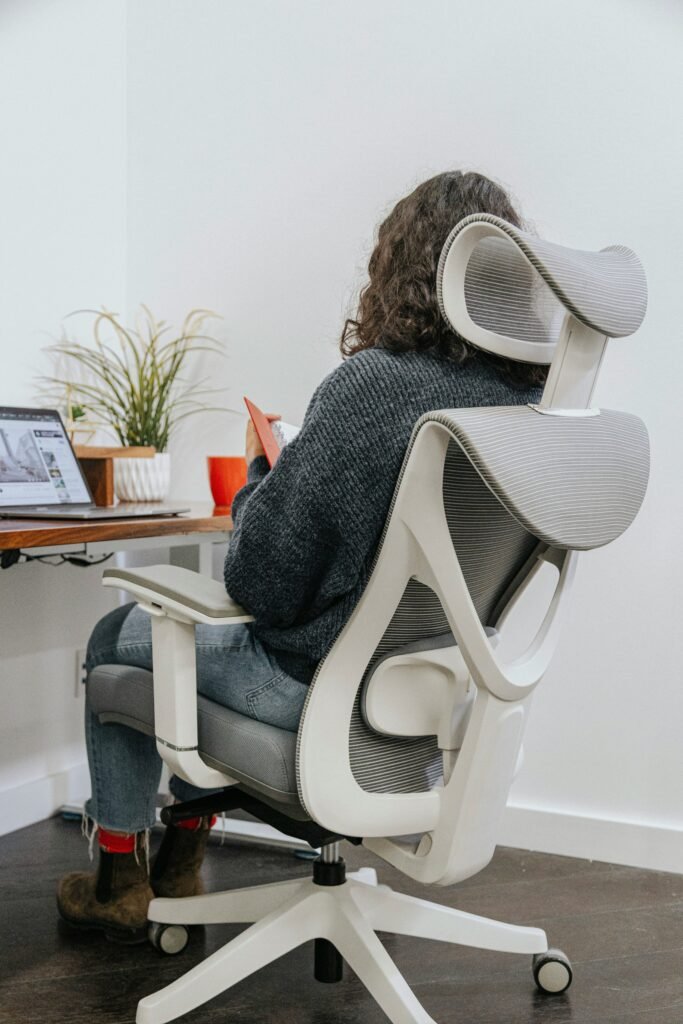
If you are serious about laptop accessories that actually improve workflow, you must prioritize ergonomics over aesthetics. Laptops are designed for portability, not human anatomy. Looking down at a screen creates 15–60 degrees of neck flexion, adding up to 60 lbs of pressure on your spine (known as “Tech Neck”).
The Fix:
-
Laptop Stand: Raises the top of the screen to eye level.
-
External Keyboard: Keeps your elbows at 90 degrees and wrists neutral. You cannot have both with a laptop sitting flat on a desk. You need to separate the screen from the keys.
4. Screen Real Estate: Portable Monitors
According to a University of Utah productivity study, dual monitors can increase productivity by up to 42%. But what happens when you go to a coffee shop? You lose your second screen, and your workflow slows to a crawl. Enter the Portable USB-C Monitor. These are thin, lightweight screens that draw power directly from your laptop.
Desk Physics: Every “Alt-Tab” you avoid saves microseconds. Over hundreds of switches per day, that compounds into real cognitive savings.
 Do NOT Buy These Gimmicks
 Do NOT buy “Vacuum” Cooling Coolers. (They are loud and often interfere with your laptop’s internal fans. Just elevate the laptop instead). Do NOT buy cheap non-powered USB Hubs. (If you plug in a hard drive and a webcam, they will disconnect randomly due to low power). Do NOT buy “Keyboard Skins.” (They make typing mushy and can trap heat inside the laptop chassis, damaging the screen).
Why: Friction kills flow. If you have to fight your gear to make it work, it is slowing you down.