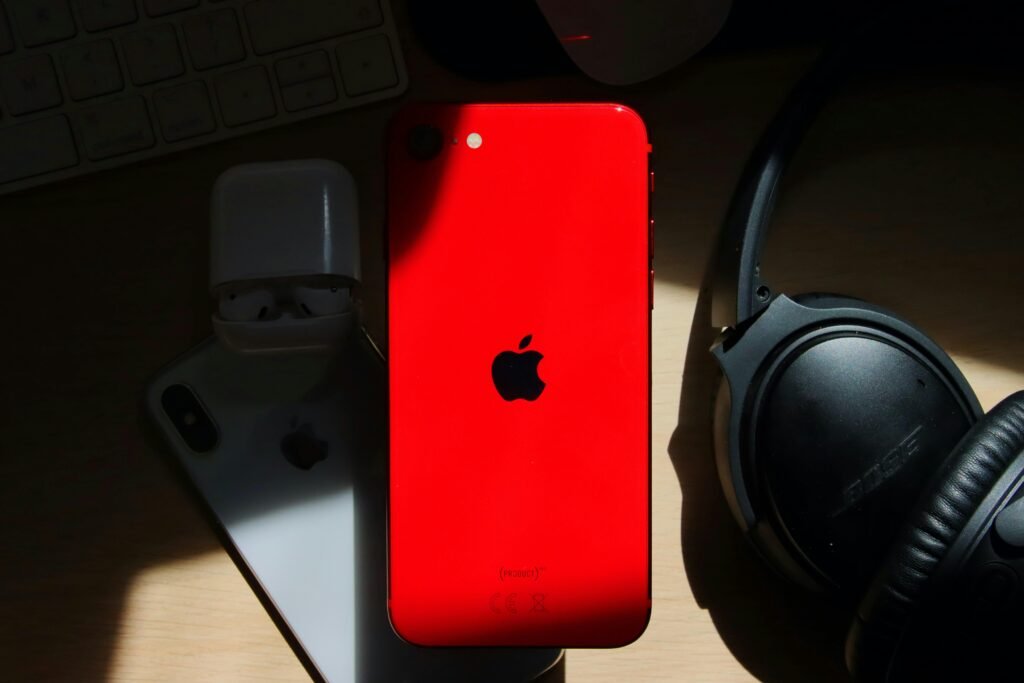
You are using your $1,000 phone like a $50 remote. Here are the 5 iPhone shortcuts everyone should know—from the “Back Tap” secret button to the three-finger undo.
iPhone Shortcuts Everyone Should Know: Automation & Hidden Gestures
Most users treat the iPhone as a static screen, unaware that it contains a powerful automation engine capable of chaining complex tasks into a single tap or voice command.
You spent $1,000+ on a pocket supercomputer, yet you are likely using it like a flip phone.
You manually type your email address 5 times a day. You dig through menus to take a screenshot. You text your spouse “I’m on my way” by hand while driving (dangerous).
Stop working for your phone. Make your phone work for you.
Many of these shortcuts are built directly into iOS accessibility and productivity layers, designed to reduce repetitive actions and cognitive load.
When we talk about iPhone shortcuts everyone should know, we aren’t just talking about swiping screen—we are talking about System Automations and Hidden Hardware Triggers that save you minutes every single day.
(Before you automate, ensure your data is safe with [[How to backup files on Windows and Mac]])
Quick Answer: iPhone Shortcuts Everyone Should Know
1. Back Tap: Turn the Apple logo on the back into a physical button (e.g., Tap twice for Screenshot).
2. Text Replacement: Type “@@” to instantly paste your email address.
3. Spacebar Trackpad: Long-press the spacebar to move the cursor precisely.
4. Three-Finger Undo: Swipe left with three fingers to undo text (no shaking required).
5. “Heading Home” Automation: One tap sends your exact ETA to a contact via Maps.
At BinarySpur, we believe in digital efficiency.
Here is the engineer’s guide to unlocking the device you already own.
1. The “Back Tap” (The Invisible Button)
Did you know your iPhone has a button on the back? It’s not a clicky button; it’s an accelerometer trigger.
You can program the back of your phone to launch anything when you tap it.
-
The Setup: Settings $\rightarrow$ Accessibility $\rightarrow$ Touch $\rightarrow$ Scroll down to Back Tap.
-
The Hack:
-
Double Tap: Flashlight (Instant light in the dark).
-
Triple Tap: Screenshot (No more awkward volume+power button fumbling).
-
2. Text Replacement (The Typing Speed Cheat)
If you type your email, home address, or hashtags manually, you are wasting time.
iOS has a built-in “macro” system.
-
The Setup: Settings $\rightarrow$ General $\rightarrow$ Keyboard $\rightarrow$ Text Replacement.
-
The Hack:
-
Shortcut:
@@$\rightarrow$ Phrase:name@binaryspur.com -
Shortcut:
addr$\rightarrow$ Phrase:123 Tech Avenue, Silicon Valley, CA -
Result: Type two characters, hit space, and the whole string appears.
-
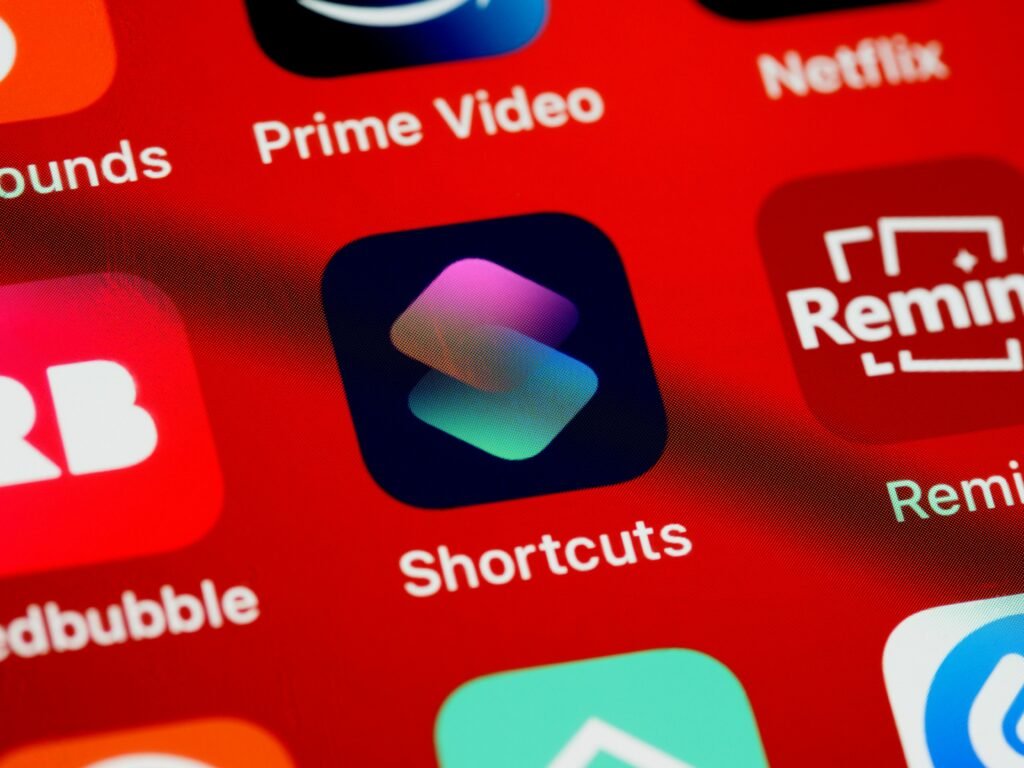
3. The “Shortcuts App” (Automation for Non-Coders)
This is the most underused app on the iPhone. It allows you to build “If This, Then That” logic.
Here is the one iPhone shortcut everyone should know for safety and convenience: The ETA Sender.
The Setup:
-
Open Shortcuts App.
-
Tap + to create new.
-
Search action: “Get Travel Time.”
-
Search action: “Send Message.”
-
Logic: “Send [Travel Time] to [Spouse].”
-
Add to Home Screen.
The Result: You get in the car. You tap one button. Your phone calculates traffic and texts your spouse: “I’ll be there in 14 minutes.” You never touched the keyboard.
4. The Spacebar Trackpad (Editing Precision)
Trying to tap exactly between two letters to fix a typo is a nightmare. You usually miss.
The Fix:
-
Open the keyboard.
-
Tap and hold the Spacebar.
-
The keys will turn blank.
-
Drag your thumb around. The cursor now moves like a mouse pointer.
5. Three-Finger Undo (The Typo Eraser)
Stop shaking your phone like a maniac when you delete the wrong word.
The Fix:
-
Undo: Swipe left with three fingers.
-
Redo: Swipe right with three fingers.
-
Copy/Paste: Pinch in with three fingers to copy; pinch out to paste.
Efficiency Matrix: Manual vs. Shortcut
Here’s what these shortcuts actually save you per day:
| Task | The “Manual” Way | The “Shortcut” Way | Time Saved |
| Typing Email | 15 keystrokes | Type “@@” (2 keystrokes) | 4 seconds |
| Screenshot | Fumble side buttons | Triple tap back of phone | 2 seconds |
| Sending ETA | Open Maps, Check time, Text | One Tap (Automation) | 20 seconds |
| Undo Text | Shake phone aggressively | Three-finger swipe | 5 seconds |
Real-Life Micro-Story: The “Flashlight” Fumble
“I was trying to unlock my front door at night while holding groceries. I couldn’t reach the screen to turn on the flashlight.
Then I remembered I set ‘Back Tap’ to Flashlight.
I just tapped the back of my phone against my leg twice. Click. Light on.
Lesson: Shortcuts aren’t just for geeks; they are for real-world utility.”
Final Thoughts: Muscle Memory is Key
The list of iPhone shortcuts everyone should know is useless if you don’t use them.
It takes about 3 days to build the muscle memory for “Back Tap” or “Spacebar Drag.”
Force yourself to use them. After a week, going back to the old way will feel painfully slow.
Your phone is a tool. Sharpen it.
(If your phone is struggling to keep up with these tasks, check our guide on [[Phone battery draining too fast — how to fix]]).
Frequently Asked Questions
Do Shortcuts drain battery?
Generally, no. System gestures like Text Replacement or the Spacebar Trackpad use zero extra battery. However, complex Shortcuts Automations (like ones that constantly check your location in the background) can have a minor impact.
Can I share my Shortcuts with others?
Yes. In the Shortcuts app, you can hit the “Share” icon on any automation you’ve built and send it as an iCloud link. This is great for sharing the “ETA” shortcut with family members so they can use it too.
Does “Back Tap” work with a case?
Yes, mostly. The accelerometer is sensitive enough to detect the tap through most standard silicone or leather cases. However, if you use an ultra-rugged, thick brick of a case (like an OtterBox Defender), it might be less responsive.