“Syncing” is not backing up. Here is how to backup files on Windows and Mac using the industry-standard 3-2-1 rule to bulletproof your data against crashes and ransomware.
How to Backup Files on Windows and Mac: The “3-2-1” Rule Explained
Backing up is the practice of creating independent copies of your data on separate media, ensuring that if one drive fails (and it will), the data survives.
There are two types of people: those who have lost data, and those who will.
Hard drives are mechanical devices, and over a long enough timeline, every drive eventually fails. It is not a matter of if your laptop will die, but when.
Most people think, “It’s fine, I have Google Drive.”
Stop. Google Drive is a Syncing Service, not a Backup Service. If you accidentally delete a file on your desktop, Google deletes it from the cloud instantly. That is not insurance; that is a mirror.
This guide explains how to backup files on Windows and Mac using the professional 3-2-1 rule—so a single mistake never wipes out your data again.
Quick Answer:
To bulletproof your data, use the 3-2-1 Rule: Keep 3 total copies of your data, on 2 different types of media (e.g., your laptop + an external hard drive), with 1 copy stored offsite (e.g., a cloud backup service like Backblaze). For Windows, use File History; for Mac, use Time Machine.
10-Minute Backup Setup Checklist
Windows user $\rightarrow$ Enable File History + plug in external HDD.
Mac user $\rightarrow$ Turn on Time Machine + external HDD.
Everyone $\rightarrow$ Add one cloud backup (Backblaze / IDrive).
Test restore $\rightarrow$ Open one old file from backup to verify it works.
At BinarySpur, we don’t gamble with digital memories.
Here is the engineering-grade guide on keeping your files safe using the unshakeable 3-2-1 System.
The Golden Standard: The 3-2-1 Rule
Don’t just “copy paste” to a USB stick. Follow the rule used by IT professionals.
This 3-2-1 rule is the same strategy used by IT departments to protect corporate and government data.
-
3 Copies: One primary (your laptop), two backups.
-
2 Media Types: Don’t put both backups on the same hard drive. If that drive drops, you lose everything. Use one Drive + Cloud.
-
1 Offsite: If your house floods or gets robbed, your external drive goes with it. The Cloud is your “Offsite” insurance.
1. How to Backup on Windows (The Native Way)
Windows has a built-in “Time Machine” equivalent called File History, but Microsoft hides it deep in the settings.
-
The Tool: File History (Free, Built-in).
-
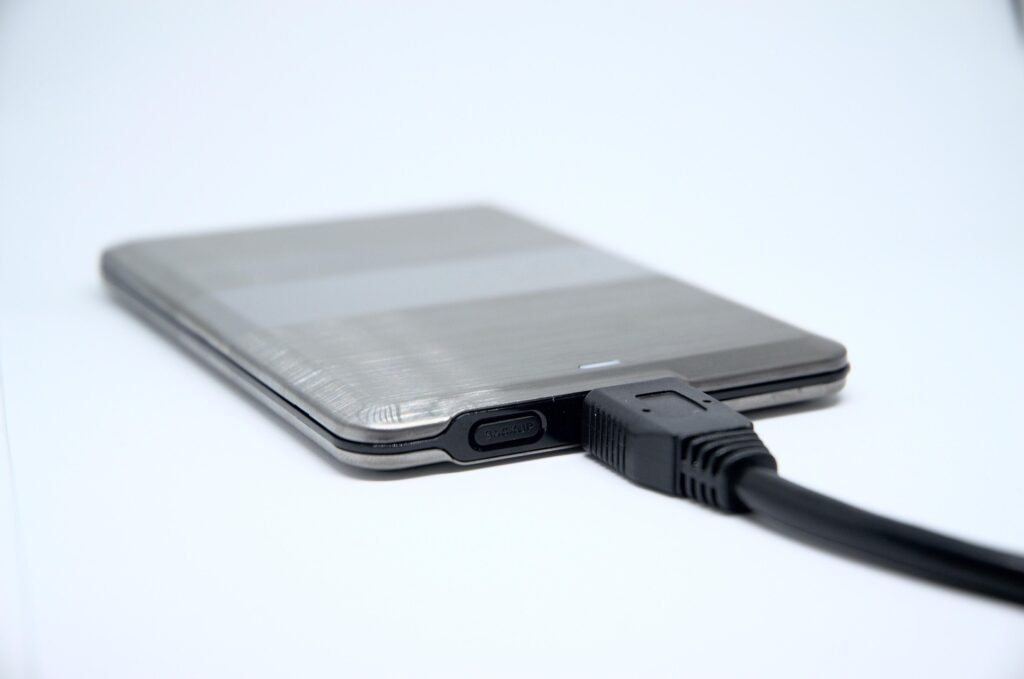
The Hardware: Any external USB Hard Drive (HDD or SSD).
-
The Setup:
-
Plug in your external drive.
-
Type “File History” in the Start Menu search.
-
Select your drive and click “Turn On.”
-
-
Why it works: It creates “snapshots” of your files every hour. If you overwrite a document by mistake, you can “go back in time” and restore the version from 2:00 PM yesterday.
(Note: If your system is already slow or corrupted, it might be time to nuke it. Read our guide on a [[Clean Install of Windows]] before setting up your backup).
2. How to Backup on Mac (The “Set and Forget” Way)
Apple’s Time Machine is arguably the best consumer backup software ever made. It is idiot-proof.
-
The Tool: Time Machine (Free, Built-in).
-
The Hardware: An external HDD (2x the size of your Mac’s internal storage).
-
The Setup:
-
Plug in the drive.
-
Your Mac will ask: “Do you want to use this disk to back up with Time Machine?”
-
Click “Use as Backup Disk.”
-
-
The Magic: Time Machine keeps hourly backups for the past 24 hours, daily backups for the past month, and weekly backups for all previous months until the drive is full.
3. The “Offsite” Layer (Cloud Backup)
This is where people get confused.
Dropbox / iCloud / Google Drive are NOT backups. They are sync tools.
If ransomware encrypts your laptop, it syncs the encrypted virus to your Dropbox, destroying both copies.
Real Backup Services (like Backblaze or IDrive) are one-way archives.
-
How it works: You install a small app. It quietly uploads everything in the background.
-
The Safety: If you delete a file, they keep it for 30 days (or forever, depending on the plan).
-
Cost: ~$6–$9/month. This is cheaper than a data recovery service ($1,000+).
Sync vs. Backup: The Fatal Confusion
Do not rely on iCloud alone.
| Feature | Cloud Sync (iCloud/Drive) | True Backup (Time Machine/Backblaze) |
| Purpose | Convenience / Access | Recovery / Safety |
| Deletion | Deletes on all devices instantly | Keeps deleted files |
| Ransomware | Vulnerable (Syncs virus) | Safe (Version history) |
| Internet? | Required | Works Offline (Local Drive) |
Real-Life Micro-Story: The “Thesis” Disaster
“In college, I wrote my senior thesis on my laptop. I saved it to Dropbox.
One night, I accidentally dragged the folder into the Trash and emptied it while cleaning my desktop. Dropbox synced the deletion immediately.
I panicked.
But, I had a $50 external hard drive plugged in running Time Machine. I opened Time Machine, scrolled back 2 hours, and restored the file.
Value: That $50 drive saved my degree.”
Final Thoughts: The “Restore” Test
A backup does not exist until you have successfully restored a file from it.
Many people diligently back up for years, only to find out their hard drive was corrupted the whole time.
By learning how to backup files on Windows and Mac correctly, you aren’t just saving data; you are saving your future peace of mind.
The Drill: Once a month, randomly pick a file (a photo, a PDF) and try to restore it from your backup drive. If it opens, you are safe. If it doesn’t, you have nothing.
(While automating your digital life, consider automating your physical life too. Check our list of [[Affordable smart home devices worth buying]]).
Frequently Asked Questions
SSD vs. HDD for backups?
HDD (Hard Disk Drive) is better for backups. Why? They are much cheaper per gigabyte. You don’t need the blazing speed of an SSD for a background backup task. Get a 4TB HDD for the price of a 1TB SSD.
How often should I back up?
Continuously. Leave your external drive plugged in whenever you are at your desk. Both Windows File History and Mac Time Machine run automatically in the background every hour. If you rely on “remembering” to do it, you will fail.
Does Time Machine backup everything?
Yes. It backs up your photos, documents, apps, and even your system settings. If your Mac is stolen, you can plug your backup drive into a new Mac, and it will clone your old computer exactly as it was.